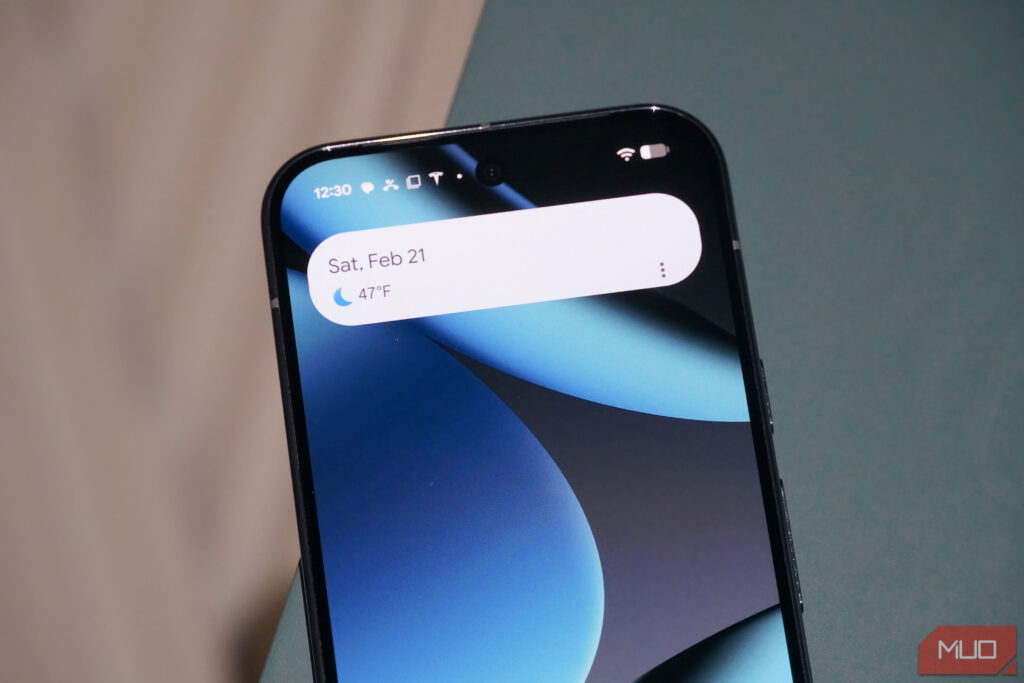

The most controversial Android feature might be Google’s At a Glance widget, available exclusively on Pixel phones. To some, it’s a vital feature that pulls data from all kinds of sources, and it’s a selling point of Google Pixel hardware. Others can’t wait to get rid of it completely when the option makes its way to stable releases of Android 16 or Android 17. Regardless of which camp you fall into, there’s a third option worth considering. Instead of simply using or removing At a Glance, you can upgrade it with a third-party app called Smartspacer.
Smartspacer is aptly named after Google Smartspace, the framework powering At a Glance that also feeds data to the home screen, lock screen, and always-on display. The idea for Smartspacer is to keep the exclusive At a Glance feature set while adding deeper customization, external plugins, and widget stacks — all without root. It also brings the At a Glance experience to third-party launchers, like Nova Launcher or Lawnchair. On some Android launchers, you can replace the stock Google Discover panel with an Expanded Smartspace for a better experience.
If you can live with a multistep setup process and giving Smartspacer access to essentially your entire Android system, the app is a worthy upgrade to one of Pixel’s most iconic tools.
Smartspacer upgrades and customizes At a Glance
Give the At a Glance widget more functionality while keeping the exclusives
Smartspacer works the same as At a Glance on the surface — it’s designed to show various data types at different times based on specific conditions. If you have an alarm set, you might see the time of your next alarm in Smartspacer. If a song is currently playing, you’ll find the track title and album artwork in your Smartspacer widget. That all sounds like At a Glance, but the key difference is the level of customization. Google offers a few toggles for personalizing At a Glance, but they’re nothing compared to the options in Smartspacer, which vary from targets and complications to plugins.
Targets in Smartspacer are large blocks of information that typically feature a title, subtitle, and icon. If you’re seeing an image or list in a Smartspacer module, it probably qualifies as a target. These are joined by complications, which are smaller bits of information that appear at the same time as targets.
You could see the weather or how many unread emails you have in micro blocks appearing alongside a larger target. You should also know about plugins, which are third-party integrations made possible by the Smartspacer SDK. There are a bunch of Smartspacer plugins supplied by the app’s developer and a few extras from other contributors. Requirements are another factor, as these dictate when a target or complication appears in Spartspacer. For example, you might set certain targets or complications to show at a specific location or if you are connected to a particular Wi-Fi network.
Everything you can do with Smartspacer
From replacing Google Discover to cycling widgets, the app does it all
The real utility comes in the form of the Expanded Smartspace, which is the true At a Glance upgrade. This is an advanced version of Smartspacer that enables system targets and complications, integrates with compatible launcher, and taps into system-based requirements. In other words, the Expanded Smartspace connects even deeper with your Android system to provide a more thorough At a Glance experience. To use it, you do need to go through additional setup hoops (more on those later).
The Expanded Smartspace is like a separate drawer for content and features found within the Smartspacer widget. If you tap the usual 4×1 widget with Expanded Smartspace enabled, the drawer appears with more information and customization options. Third-party app widgets can be added to the Expanded Smartspace, allowing you to load up the drawer with more information and controls without cluttering your home screen. You can further tweak this section of the app by determining whether a search bar appears here, and if Expanded Smartspace can be accessible from the lock screen.
In terms of raw feature set, the impressive capability of Smartspacer is support for Google’s At a Glance as a target. With this selection active, you’ll see every At a Glance feature — including the exclusive ones — within the Smartspacer widget. So, you can add granular tools like calendar, clock, date, Digital Wellbeing, greeting, music, notifications, Pixel Now playing, flashlight, and widgets as targets without losing out on the features that make At a Glance special.
Of the available targets, I really like seeing now playing music both from my device and in my surrounding environment in Smartspacer’s widget. You can always add extra complications and plugins to build out the data types available to Smartspacer. The widget’s best tool might be what isn’t there. Since you configure the experience from scratch, no unnecessary information will appear on the Smartspacer widget by default.
Smartspacer isn’t for everyone
It requires many system permissions and setup can be intense
Smartspacer’s expanded feature set and top-notch customization are undeniable, but the setup process and permissions required will be a major barrier to entry. It’s strictly a power user app for these reasons. To get started using the app Smartspacer requires enabling accessibility features and access to device notifications, which can’t be done the usual way. Android’s system protections block the options by default, so you need to manually enable restricted settings on the Apps page in Settings to access them. To Smartspacer’s credit, the app does a great job walking users through the process and explaining how it all works.
The app is also available on GitHub, so curious minds can learn more about the functionality or read the FAQ page for a high-level overview. Here, you’ll find the catch — you must use Shizuku and the Android Debug Bridge to grant Smartspacer access to system-level APIs (like those powering the At a Glance feature). This is required to use Smartspacer with At a Glance features or try the Expanded Smartspace user interface. It’s an alternative to rooting your device, which is appreciated, but it still adds a bit of friction for casual users.
The biggest pain point is that Shizuku and wireless debugging need to be restarted whenever your phone runs out of battery or is otherwise shut off and turned back on. Alternatively, you can use Smartspacer like a regular Android widget, but you’ll miss out on core At a Glance functionality. The most appealing feature for my use case is the Expanded Smartspace, which works like a widget drawer that essentially brings widget stacks to the Pixel Launcher, finally.
If you love the idea behind At a Glance on Pixels but wish the execution was better, Smartspacer delivers.