

The Steam Deck is amazing; it catalyzed handheld gaming, and since its launch, many other manufacturers have entered the market to compete. The OLED version further improved the device by switching to a different panel technology, increasing the refresh rate, and improving battery life. However, there’s one way to make it even better: using plugins. The device runs on SteamOS, a Linux-based, operating system, and has an active community contribution through these plugins. You can install them through the Decky Loader tool in desktop mode, and some can really enhance your experience with the device; I believe these should have been built into the device from the start.
CSS Loader
More control over the UI
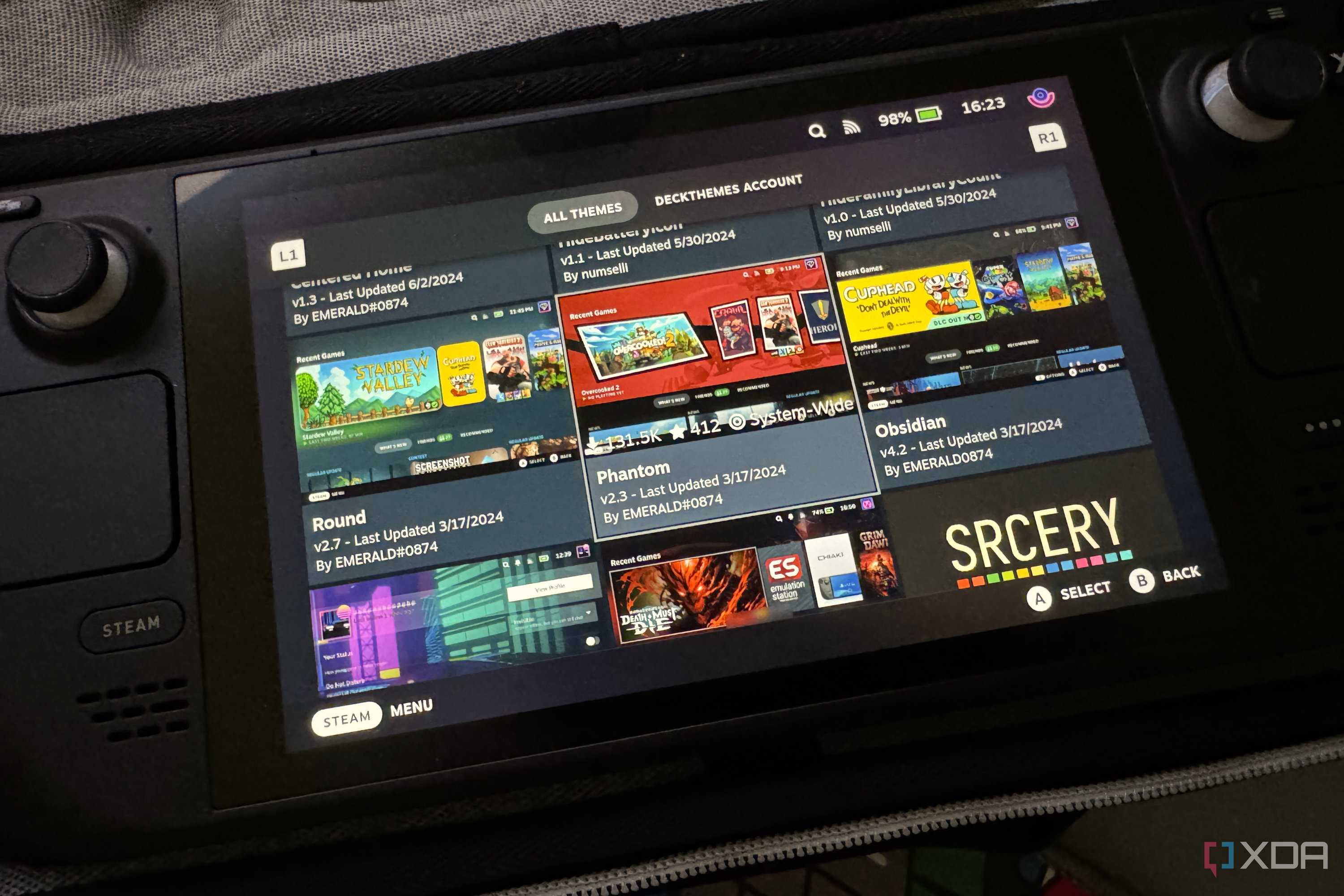
The CSS (Cascading Style Sheet) lets you apply custom themes to the Steam Deck’s UI. In practice, this means you can customize visual elements like:
- Fonts, colors, and layout tweaks
- Home screen elements (like the rounded game tiles)
- Smaller elements, such as the volume slider
Community themes range from minor tweaks (rounded corners, custom fonts) to more large-scale UI rearrangements. It’s quite a surprise to me that you don’t get more fine-tuned customization built into the device. Valve has been updating the Steam and SteamOS UIs with customization options like text scaling and high-contrast modes, but they are still far more limited than the range you get with CSS Loader.
To install it, first install Decky Loader, then find and install CSS Loader from its store. The CSS Loader provides theme options through the “Manage Themes” button.
ProtonDB Badges
Because Steam doesn’t tell you enough by default
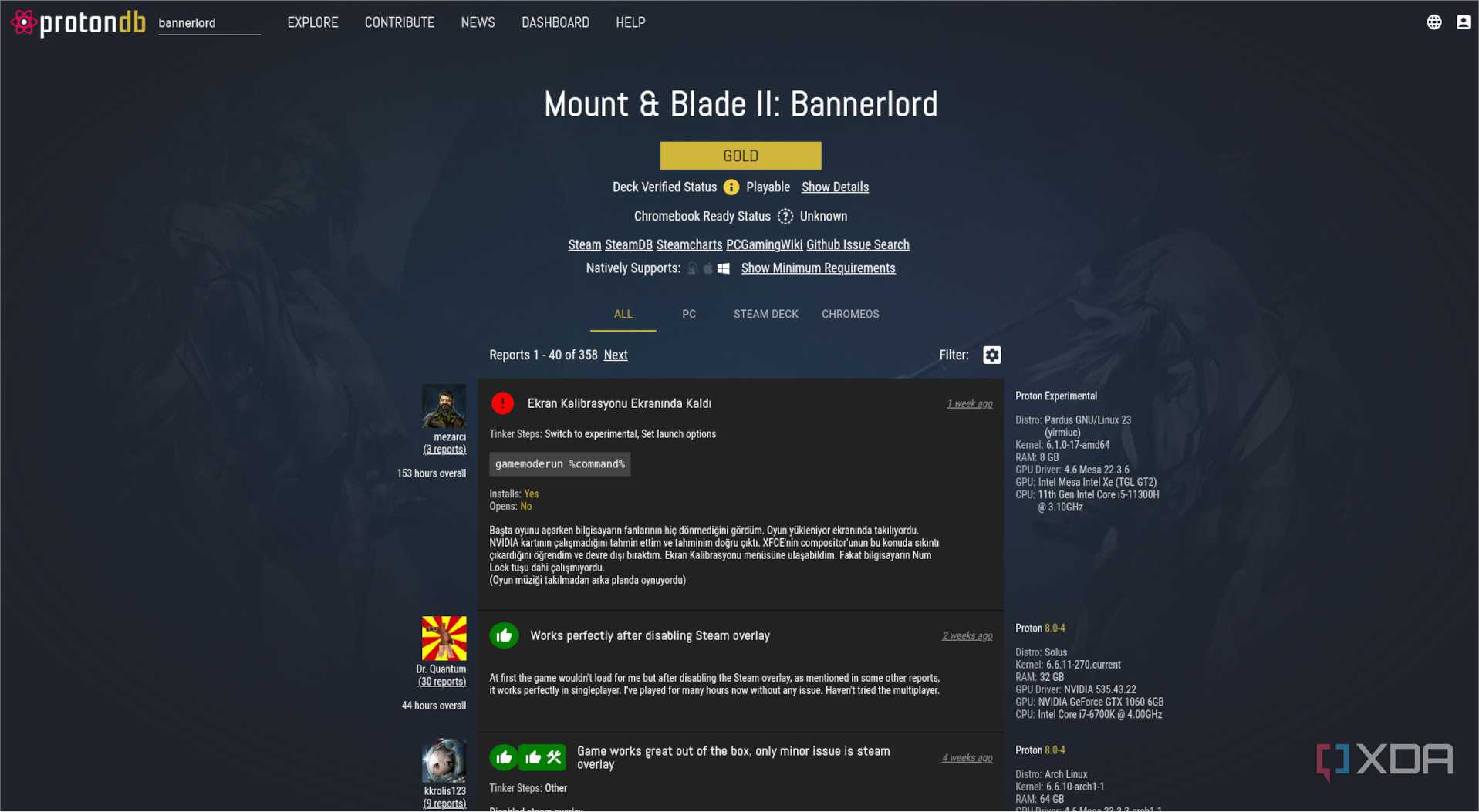
ProtonDB is a platform that tells you about game compatibility, including errors, bugs, tips, and reports on games running on Proton (Valve’s compatibility layer for Windows games). However, SteamOS does not integrate this platform into its environment. Instead, you have to open up a separate browser or use a different device to search. ProtonDB Badges is a plugin designed to counter just that. You get color-coded badges (e.g., Platinum, Gold) for each title in your library, indicating compatibility levels. It’s worth mentioning that the Steam Deck does include compatibility information by default via “Steam Deck Verified” labels, but it’s very limited and doesn’t provide specifics. For example, a verified title may still show performance issues or graphical bugs. The ProtonDB data is more reliable, especially because it covers multiple Proton versions and pinpoints key details.
SteamGridDB
Artwork galore!
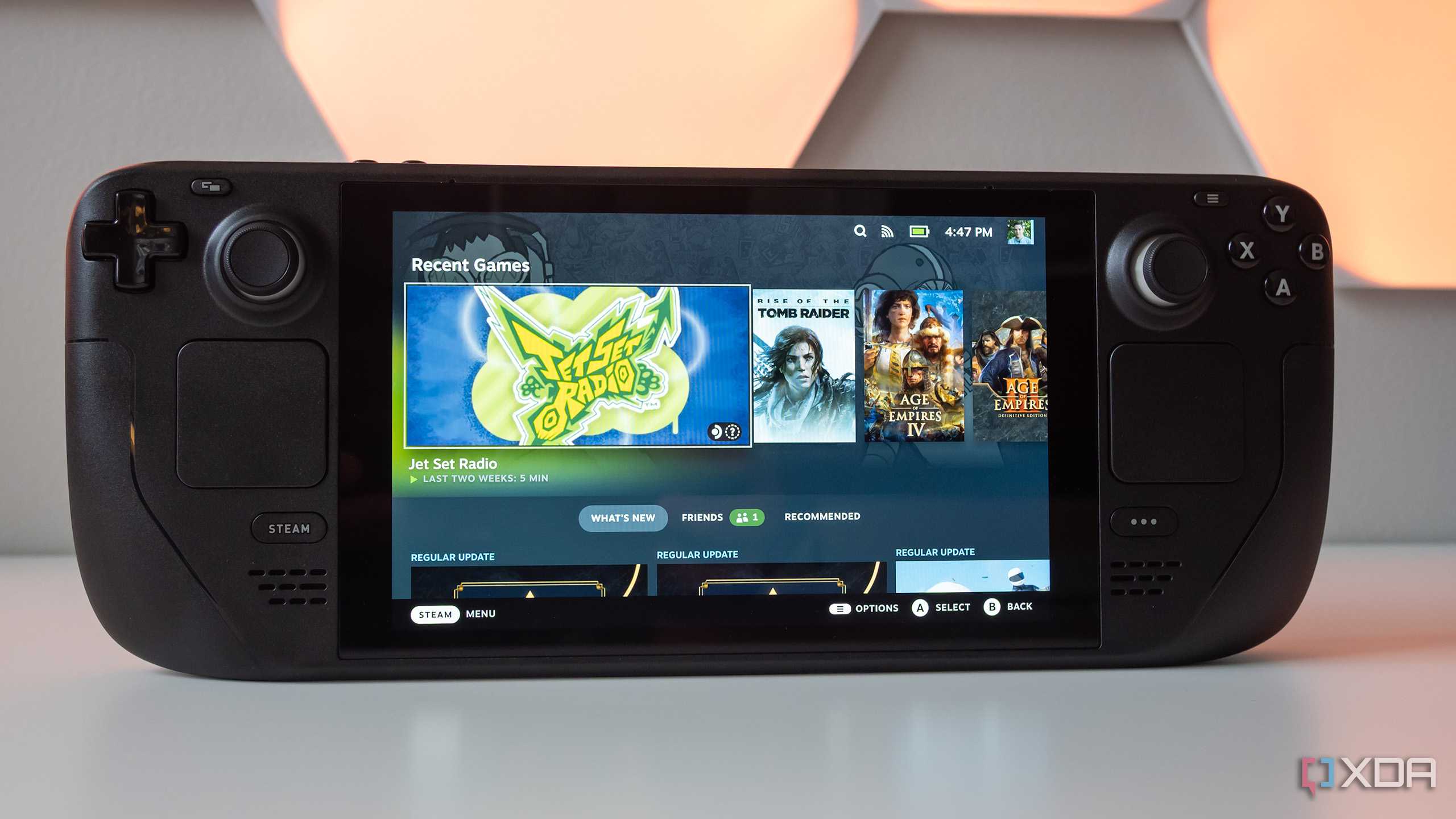
SteamGridDB is a massive database of artwork developed by the gaming community, and the plugin lets you modify artwork for your game while remaining in gaming mode. You get options for the capsule, wide capsule, hero, logo, and icons. The importance of this is that you must use browser mode to modify game artwork by default. The plugin not only offers the convenience of staying in gaming mode but also provides a huge library to choose from, including artwork for non-Steam games.
Pause Games
Because they keep running in the background
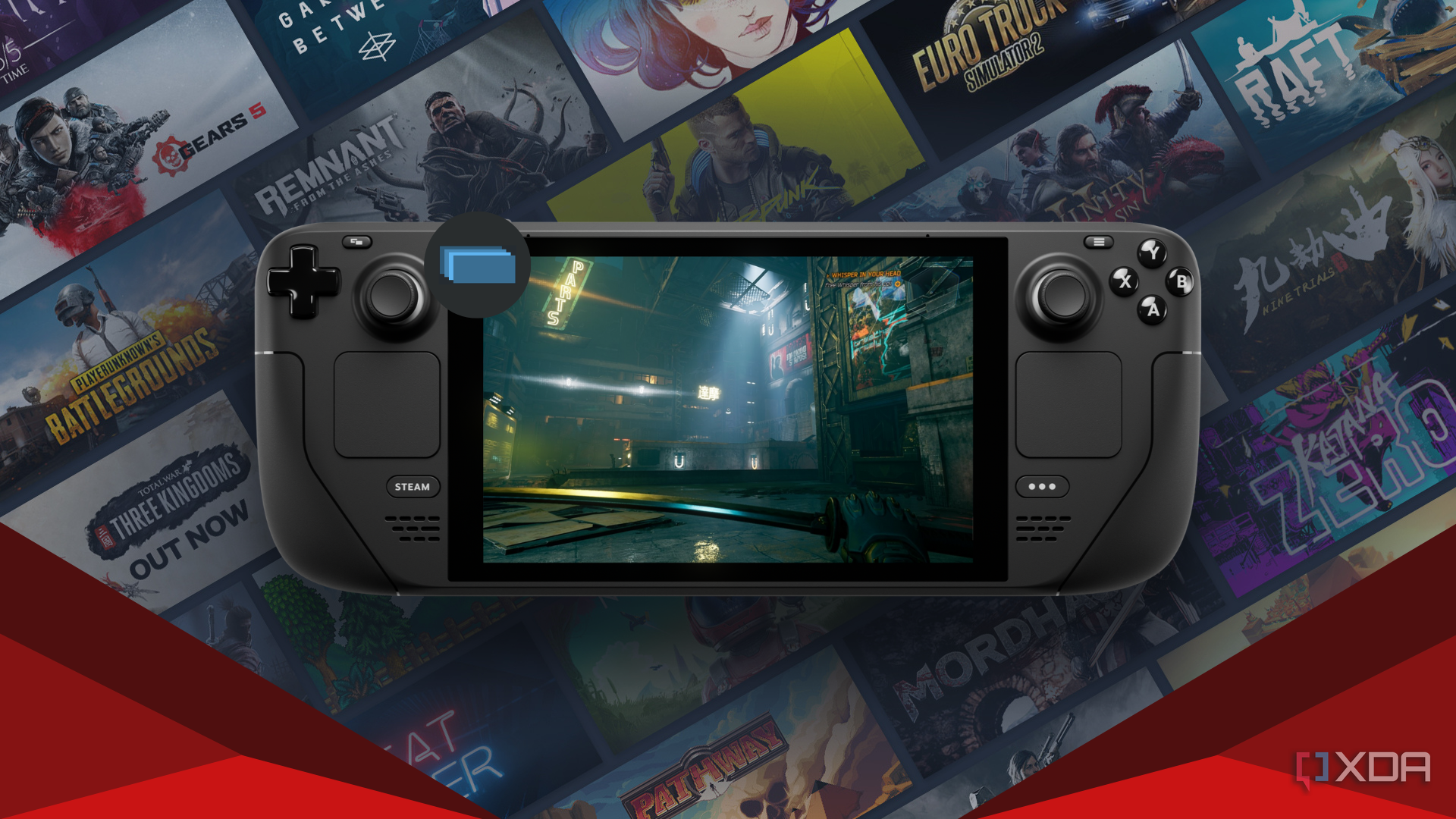
The Pause Games plugin allows manual and automatic pausing of games when you go on to do something else, like switching to the Steam overlay. It also automatically pauses running games when the device is idle and about to go to sleep. This would be a great addition because, by default, the Steam Deck only has a “low-power” mode functionality, which you can enable while playing a game if you’re stepping away. Otherwise, if you switch to the system UI or open another game, the previous game keeps running unless you manually quit. Some games may also glitch out (for example, freezing on wake) once you reopen them. The Plugin counters the former issue and may help with the latter; it halts the game’s CPU/GPU usage when you switch to another task without quitting the game. For a handheld, battery timing is crucial, so this should definitely have been a default feature.
Storage Cleaner
Because those leftovers can take up a lot of space
SteamOS does not provide a cache cleanup option; you can only see how much cache each game consumes. Even with the 2023 update that shrunk cache sizes by 60%, leftover cache can be a problem, especially if you have, say, the 64 GB model. Cache is not the only component that consumes space: ProtonDB compatibility data does as well. Unless you want to keep your game data (perhaps for later replay), you can delete the cache (and any compatibility data) for any games you’ve deleted using the Storage Cleaner plugin.
Deleting compatdata can break game launch, while deleting cache data can cause microstutters and longer load times (until shaders are recompiled). You should only delete them if you’ve uninstalled the game.
These Steam Deck plugins make life easier, and I wonder why they’re not defaults
The Steam Deck is an excellent device, and these plugins are intended to fill the little gaps left over by Steam. Most of these are basic functionality tweaks that should really have been part of the system/OS by default. Despite some of these being very popular, Valve hasn’t made any active efforts to integrate them into the OS, though there are instances, such as the introduction of vibrancy settings in SteamOS 3.5, that replaced the VibrantDeck plugin for many users.